Requirements
Metadata
OpenMetadata supports 2 types of connection for the NiFi connector:- basic authentication: use username/password to authenticate to NiFi.
- client certificate authentication: use CA, client certificate and client key files to authenticate.
The user should be able to send request to the NiFi API and access the
Resourcesendpoint.
Metadata Ingestion
Connection Details
Connection Details
- Host and Port: Pipeline Service Management/UI URI. This should be specified as a string in the format ‘hostname:port’.
- NiFi Config: OpenMetadata supports username/password or client certificate authentication.
- Basic Authentication
- Username: Username to connect to NiFi. This user should be able to send request to the Nifi API and access the
Resourcesendpoint. - Password: Password to connect to NiFi.
- Verify SSL: Whether SSL verification should be perform when authenticating.
- Username: Username to connect to NiFi. This user should be able to send request to the Nifi API and access the
- Client Certificate Authentication
- Certificate Authority Path: Path to the certificate authority (CA) file. This is the certificate used to store and issue your digital certificate. This is an optional parameter. If omitted SSL verification will be skipped; this can present some sever security issue. important: This file should be accessible from where the ingestion workflow is running. For example, if you are using OpenMetadata Ingestion Docker container, this file should be in this container.
- Client Certificate Path: Path to the certificate client file. important: This file should be accessible from where the ingestion workflow is running. For example, if you are using OpenMetadata Ingestion Docker container, this file should be in this container.
- Client Key Path: Path to the client key file. important: This file should be accessible from where the ingestion workflow is running. For example, if you are using OpenMetadata Ingestion Docker container, this file should be in this container.
- Basic Authentication
Test the Connection
Once the credentials have been added, click on Test Connection and Save the changes.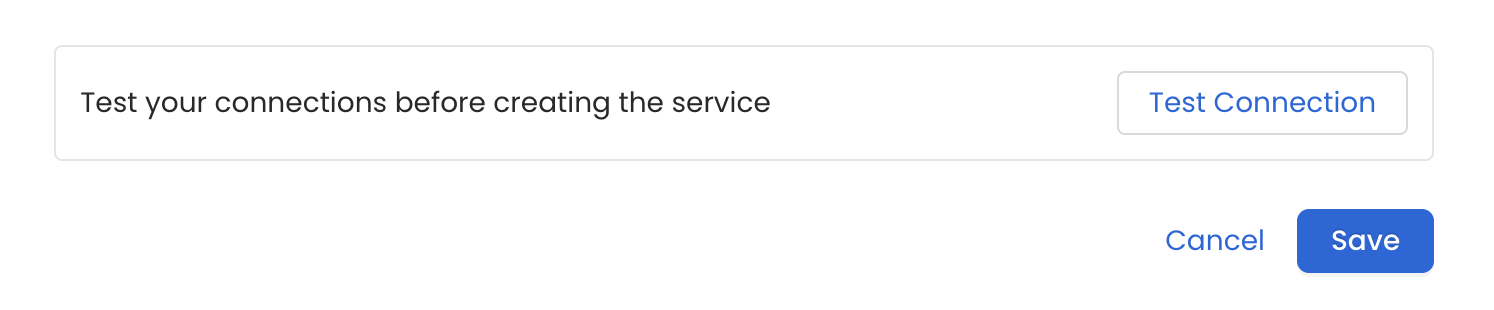
Configure Metadata Ingestion
In this step we will configure the metadata ingestion pipeline,
Please follow the instructions below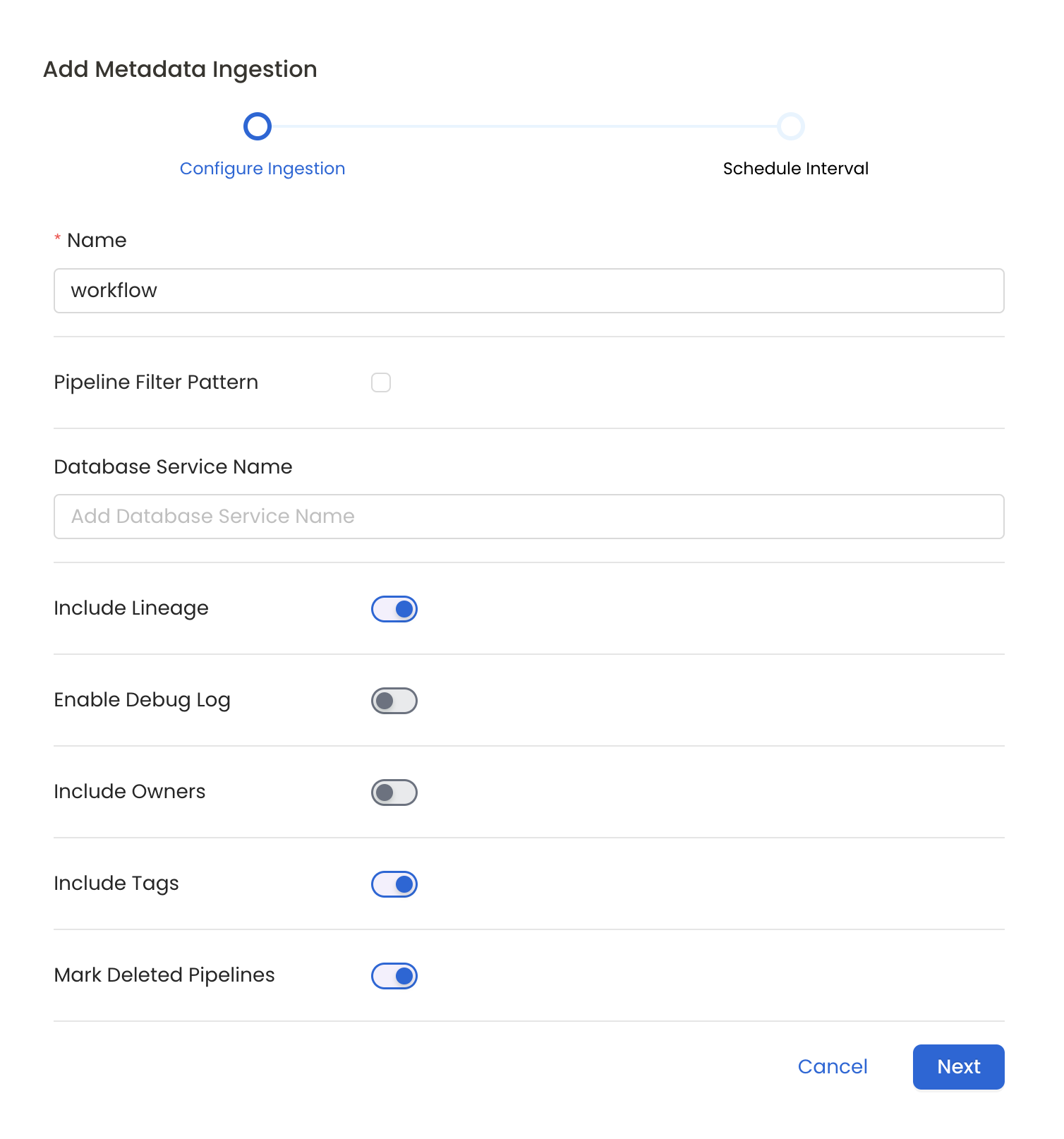
Metadata Ingestion Options
- Name: This field refers to the name of ingestion pipeline, you can customize the name or use the generated name.
- Pipeline Filter Pattern (Optional): Use to pipeline filter patterns to control whether or not to include pipeline as part of metadata ingestion.
- Include: Explicitly include pipeline by adding a list of comma-separated regular expressions to the Include field. OpenMetadata will include all pipeline with names matching one or more of the supplied regular expressions. All other schemas will be excluded.
- Exclude: Explicitly exclude pipeline by adding a list of comma-separated regular expressions to the Exclude field. OpenMetadata will exclude all pipeline with names matching one or more of the supplied regular expressions. All other schemas will be included.
- Include lineage (toggle): Set the Include lineage toggle to control whether to include lineage between pipelines and data sources as part of metadata ingestion.
- Enable Debug Log (toggle): Set the Enable Debug Log toggle to set the default log level to debug.
- Mark Deleted Pipelines (toggle): Set the Mark Deleted Pipelines toggle to flag pipelines as soft-deleted if they are not present anymore in the source system.
Schedule the Ingestion and Deploy
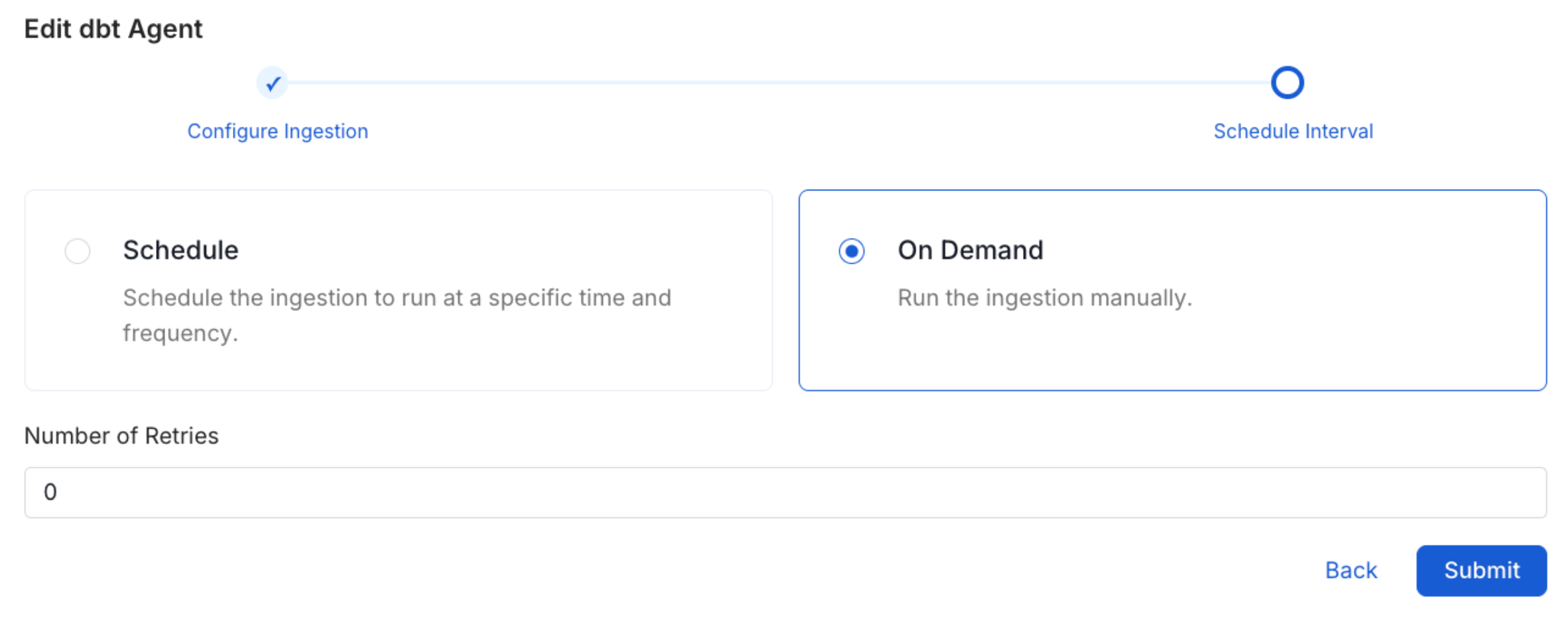
Scheduling can be set up at an hourly, daily, weekly, or manual cadence. The
timezone is in UTC. Select a Start Date to schedule for ingestion. It is
optional to add an End Date.Review your configuration settings. If they match what you intended,
click Deploy to create the service and schedule metadata ingestion.If something doesn’t look right, click the Back button to return to the
appropriate step and change the settings as needed.After configuring the workflow, you can click on Deploy to create the
pipeline.